Your First Workflow
Tasks, steps, and the shell function - the smallest useful OrchStep workflow
OrchStep executes workflows defined in a YAML file (orchstep.yml by
default). A workflow contains tasks; a task is a sequence of steps;
each step calls a function - most often shell.
Don't want to start from a blank file?
orchstep init(v0.9.0+) scaffolds a commented, runnable starter -orchstep init --listshows the available templates. This chapter builds the same thing by hand so every line is understood.
A minimal workflow
name: hello
desc: "First contact with OrchStep"

tasks:
  main:
    desc: "Say hello"
    steps:
      - name: greet
        func: shell
do: echo "Hello from OrchStep!"Run it from the file's directory:
orchstep run            # runs the task named "main" by default
orchstep run main       # same thing, explicit
orchstep run -f path/to/other.yml mainMore than one task
Tasks are addressable units - each can be run on its own:
name: service-ops

tasks:
  build:
    desc: "Compile the service"
    steps:
      - name: compile
        func: shell
        do: echo "building..."

  test:
    desc: "Run the test suite"
    steps:
      - name: unit
        func: shell
do: echo "testing..."orchstep run build
orchstep run test
orchstep list-tasks # prints public task names, script-friendly
orchstep menu # interactive picker with hotkeys + fuzzy searchTasks whose names start with _ are internal: hidden from list-tasks and
the menu, but callable from other tasks.
The task menu
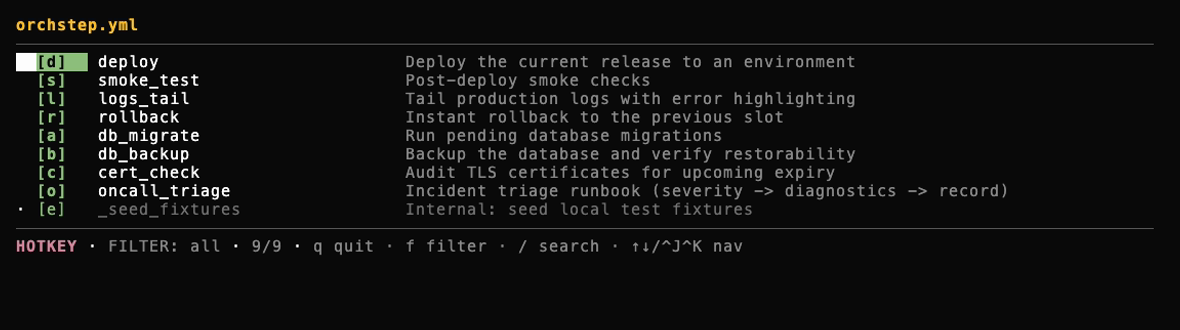
For day-to-day operations, orchstep menu turns the workflow into a
keyboard-driven control panel. Every public task gets a single-key hotkey -
press it and the task runs immediately:
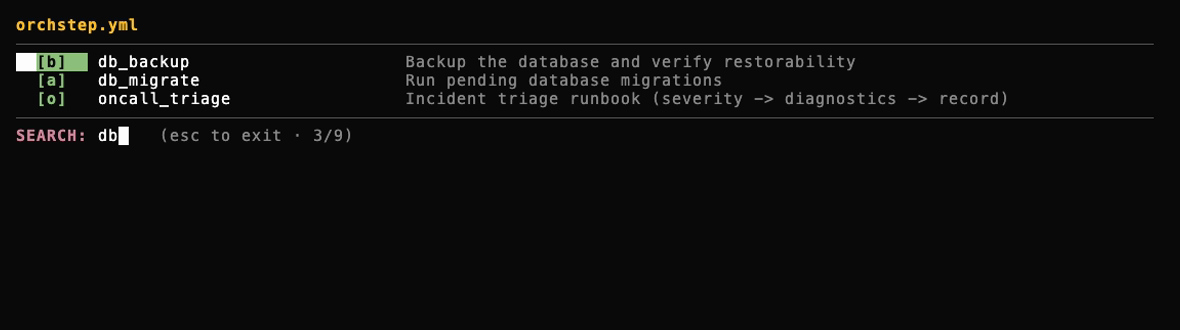
Press / (or just start moving the cursor) to enter search mode and
fuzzy-filter tasks by name or description:
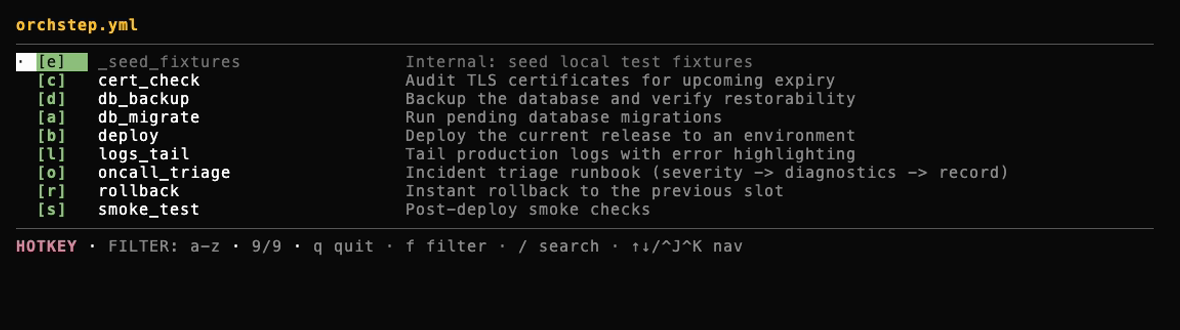
Press f to cycle filters - all, alphabetical, public-only, or
internal-only (note the _seed_fixtures task: dimmed, and hidden from the
public filter):
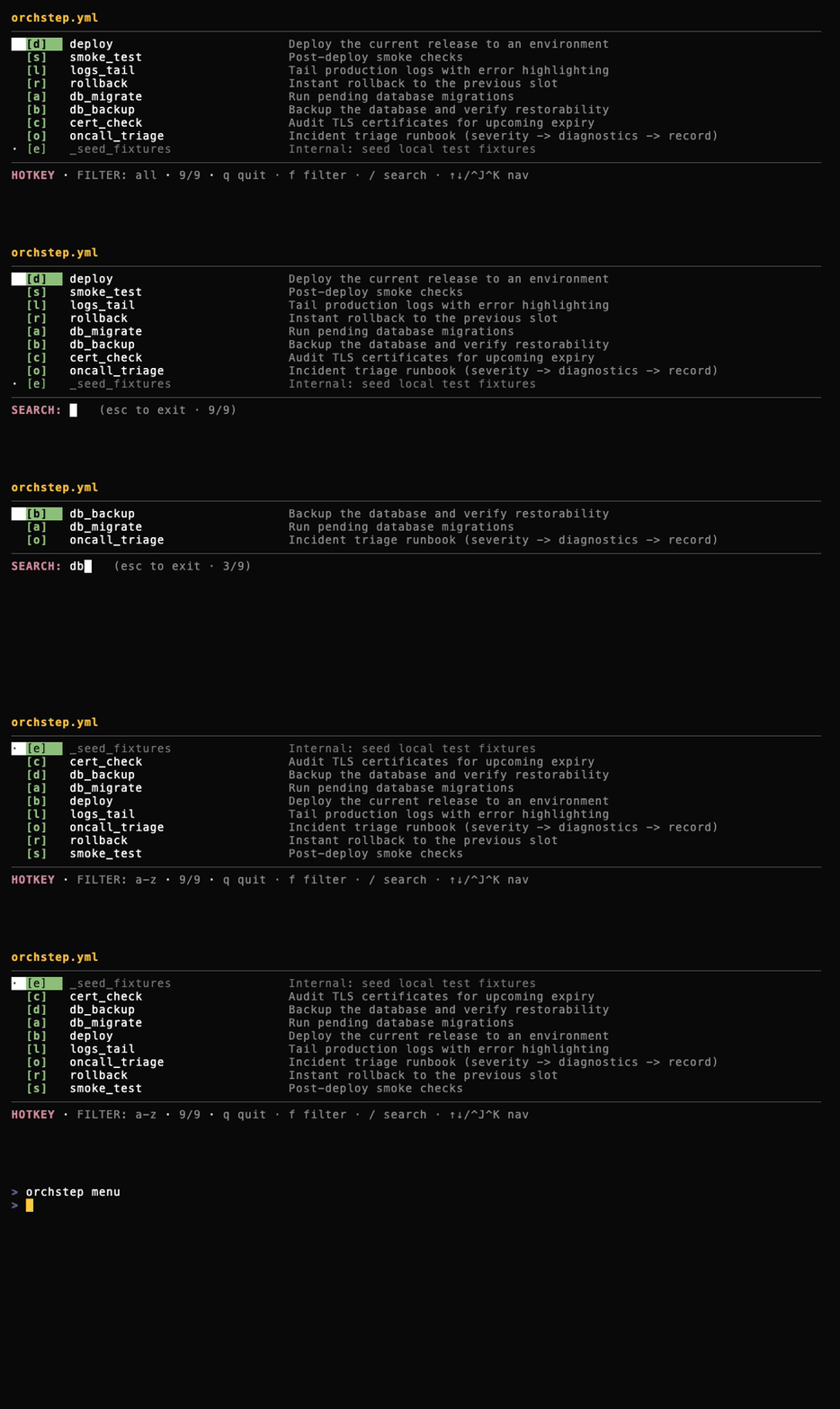
The whole loop in motion:
| Key | Action |
|---|---|
a-z, 0-9 | Run the task with that hotkey |
/ | Search mode (fuzzy, name + description) |
f | Cycle filter: all / a-z / public / internal |
arrows, Ctrl-J/Ctrl-K | Move the cursor |
Enter | Run the highlighted task |
q, Ctrl-C | Quit |
In a non-terminal context (CI, pipes) the menu refuses to start instead of hanging, so it is always safe to have around in scripts.
Multi-line commands
do: takes a full script with YAML block syntax:
- name: report
  func: shell
  do: |
    echo "host: $(hostname)"
echo "date: $(date +%F)"A failing command (non-zero exit) fails the step, which fails the task - that default is what makes workflows trustworthy. You will loosen it deliberately in Error Handling.
Where to go next
Variables & Outputs - make workflows configurable and pass data between steps.